How to install SketchUp Studio for Mac (FR)
Requesting a licence
To use SketchUp, you must have an active Trimble ID linked to your school email address.
Step 1: Go to 3dwarehouse.sketchup.com.
Step 2: Click on the icon in the upper right corner to create a new Trimble ID or to log in.
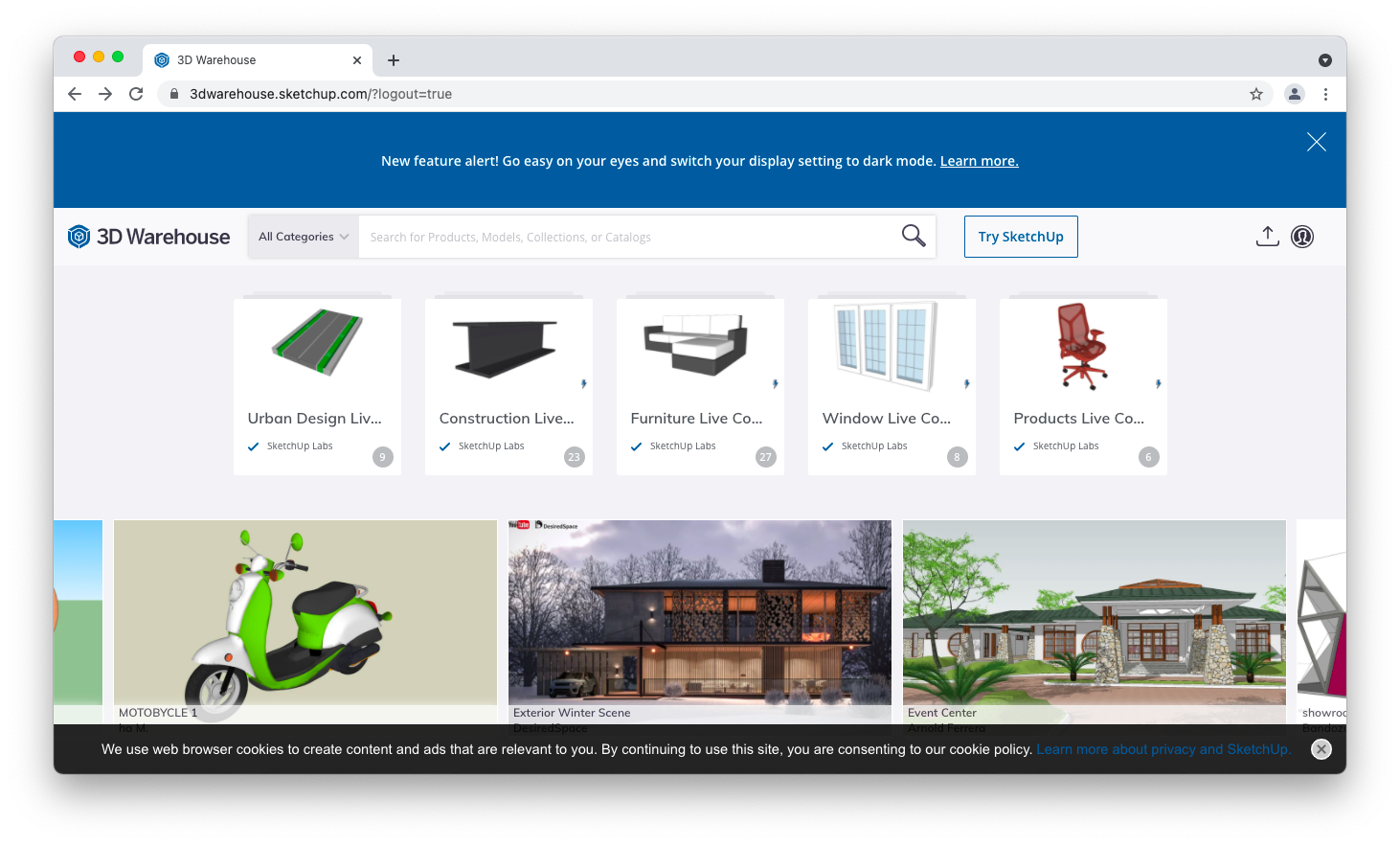
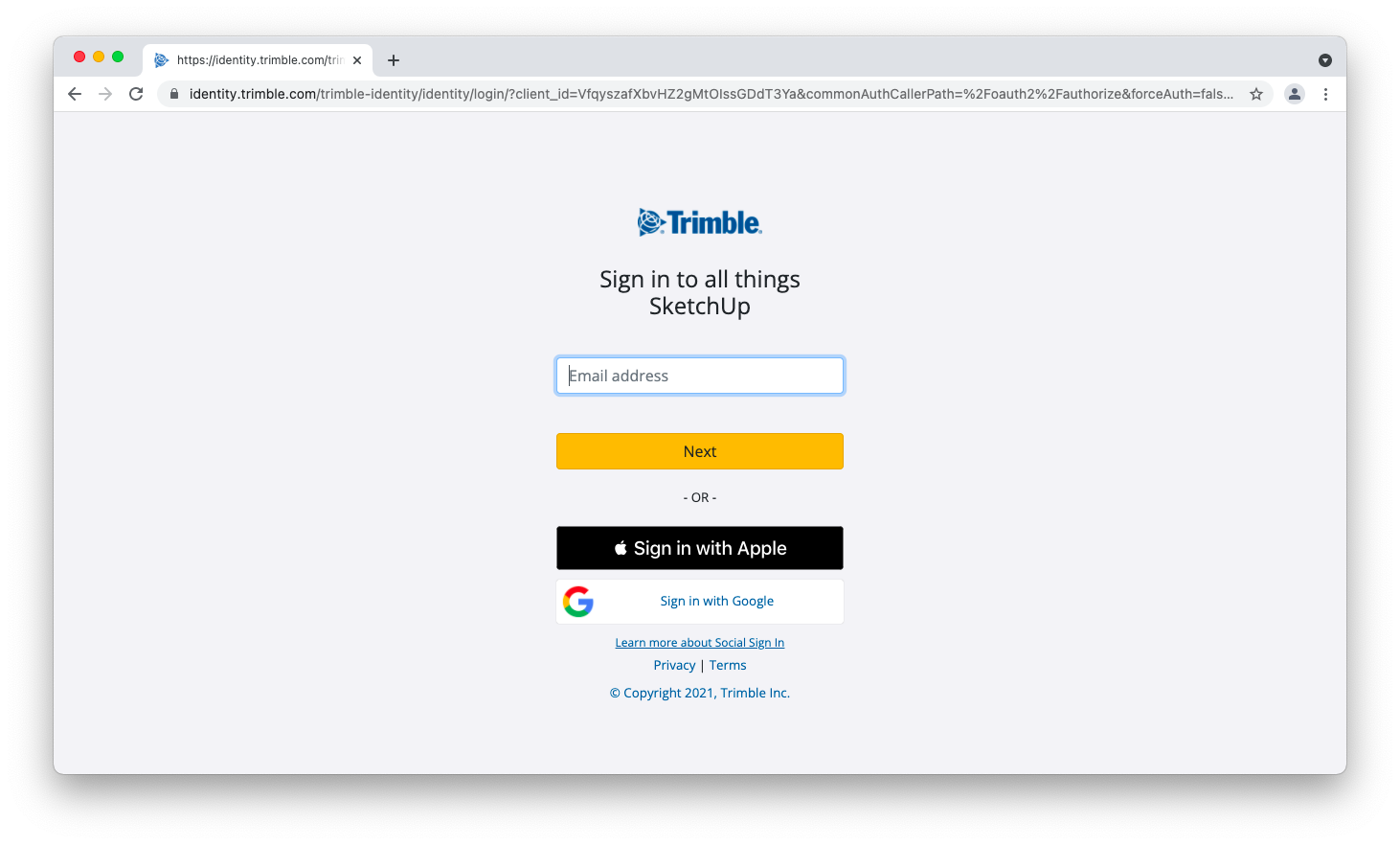
Step 3: Enter your school email address and click on Next.
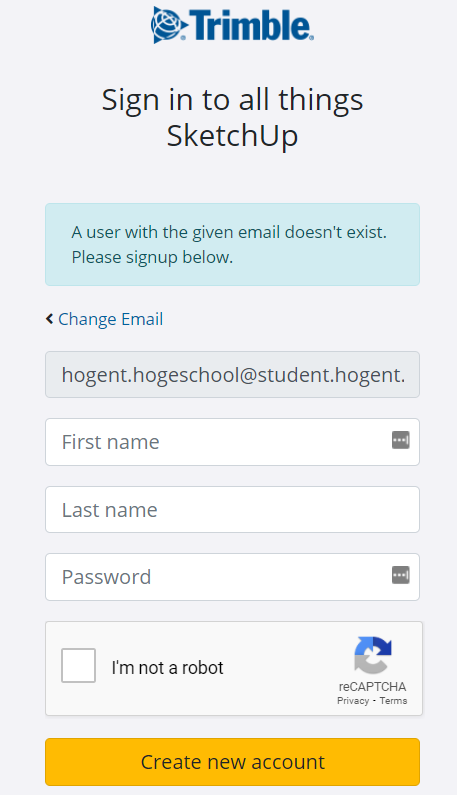
Step 4: Fill in the required details and click on 'Create new account'.
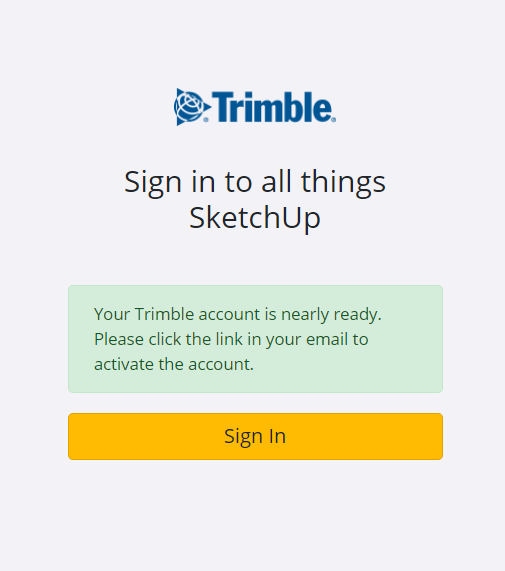
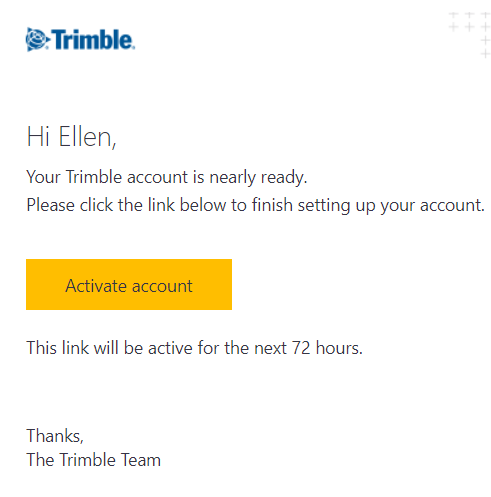
Step 5: You will receive an activation mail. Check your junk mail if you do not find it. Click on the link in the mail to activate your account.
Step 6: Go back to the Academic Software page.
Click on Request to complete your request.
Your request must first be processed, this may take two to three working days. As soon as your request has been processed, you will receive an email from Trimble. You can also check the status of your order at any time by logging on to the Account Management Portal
Install SketchUp
Note: the screenshots below were taken from the SketchUp Pro installer. However, the process is the same for the installation of SketchUp Studio.
Step 1: Download the software by clicking on the 'Download SketchUp Studio' button on Academic Software.
Step 2: Find the ZIP file in your download folder. Double-click it to extract it. Then right-click on the .DMG file and choose Open to prevent the program from being quarantined.

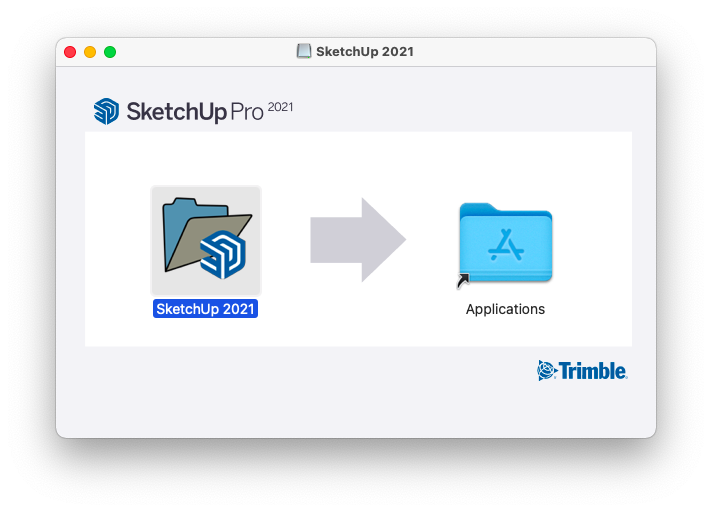
Step 3: The first time you open the program, the following screen will appear.
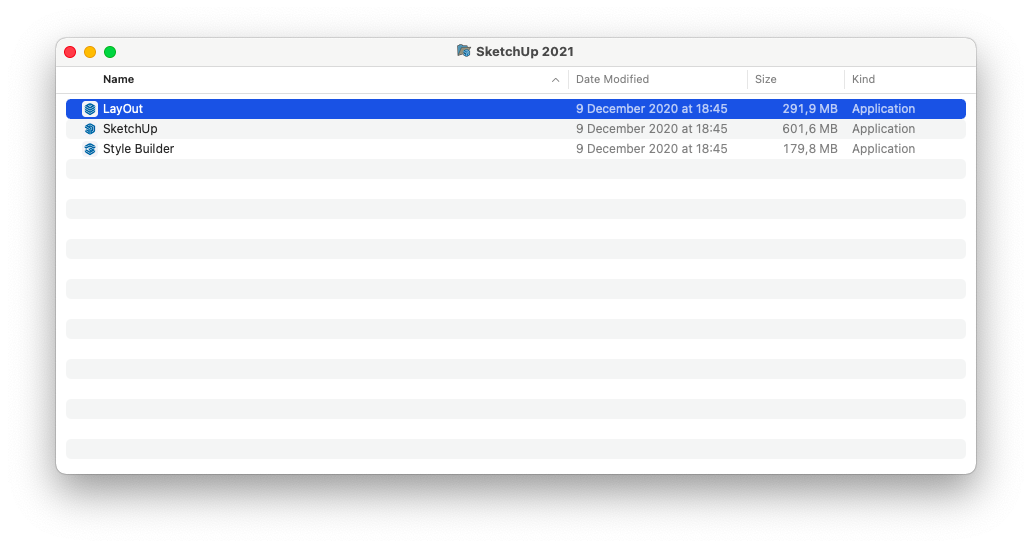
Double-click the folder 'SketchUp 2021', and a folder with 3 files will open. Copy these three files to the Applications folder.
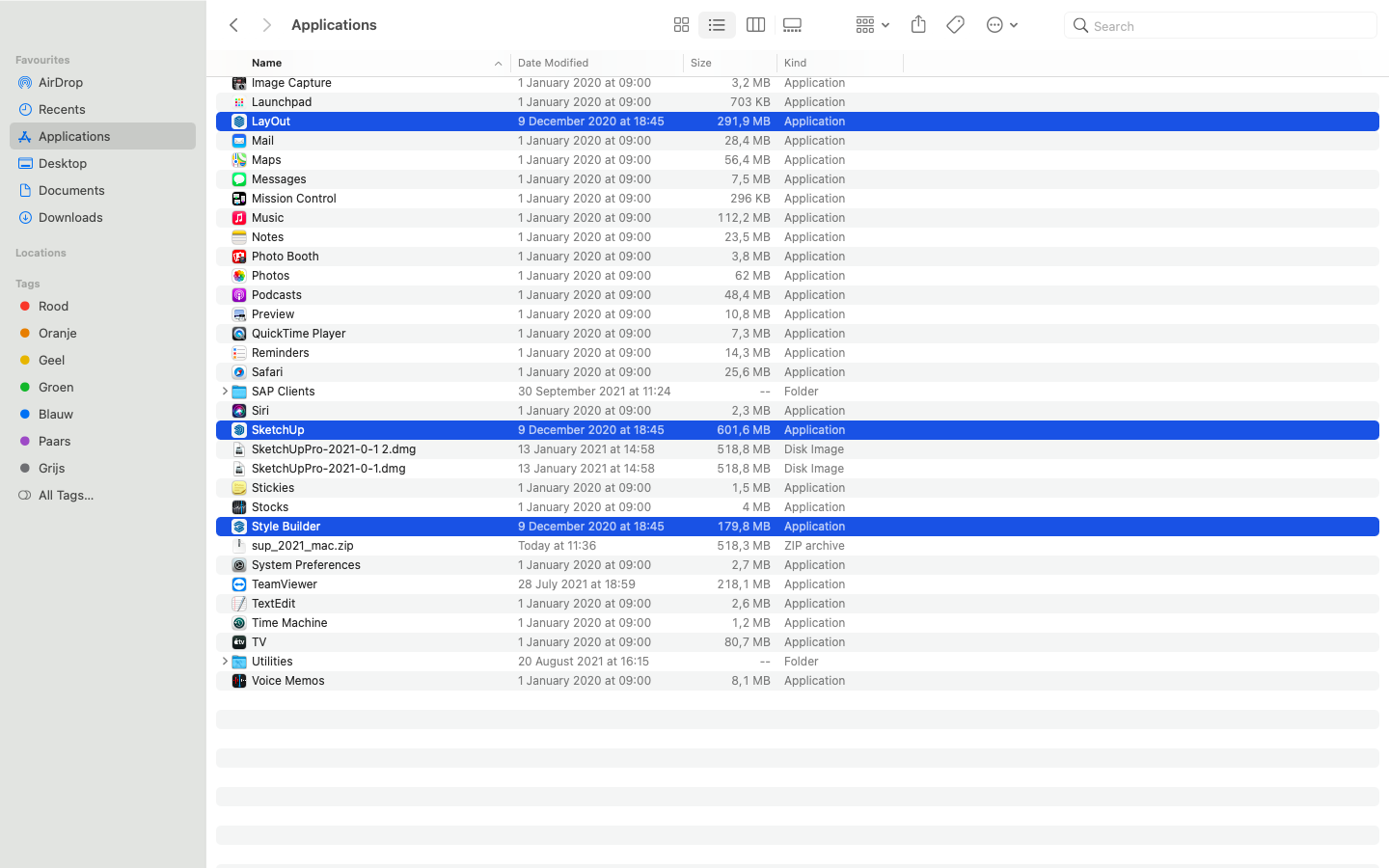
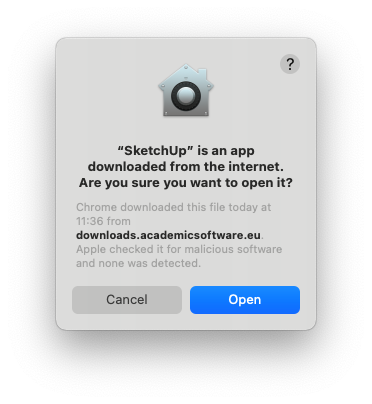
Step 4: Right-click on the SketchUp file and choose Open to start the installation.
Then click Open again.
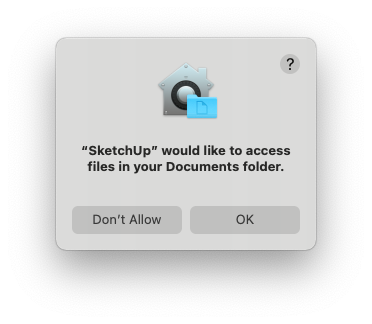
Step 5: Click on OK.
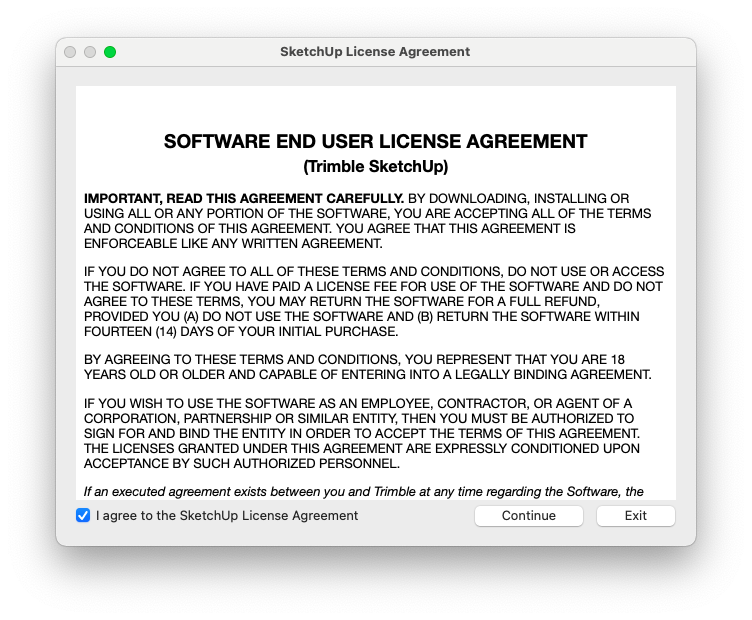
Step 6: Accept the licence agreement.
Activating SketchUp
Once you have received a confirmation email from Trimble, you can get started with the software.
Step 1: Open SketchUp and click on 'Sign In' to log in again.
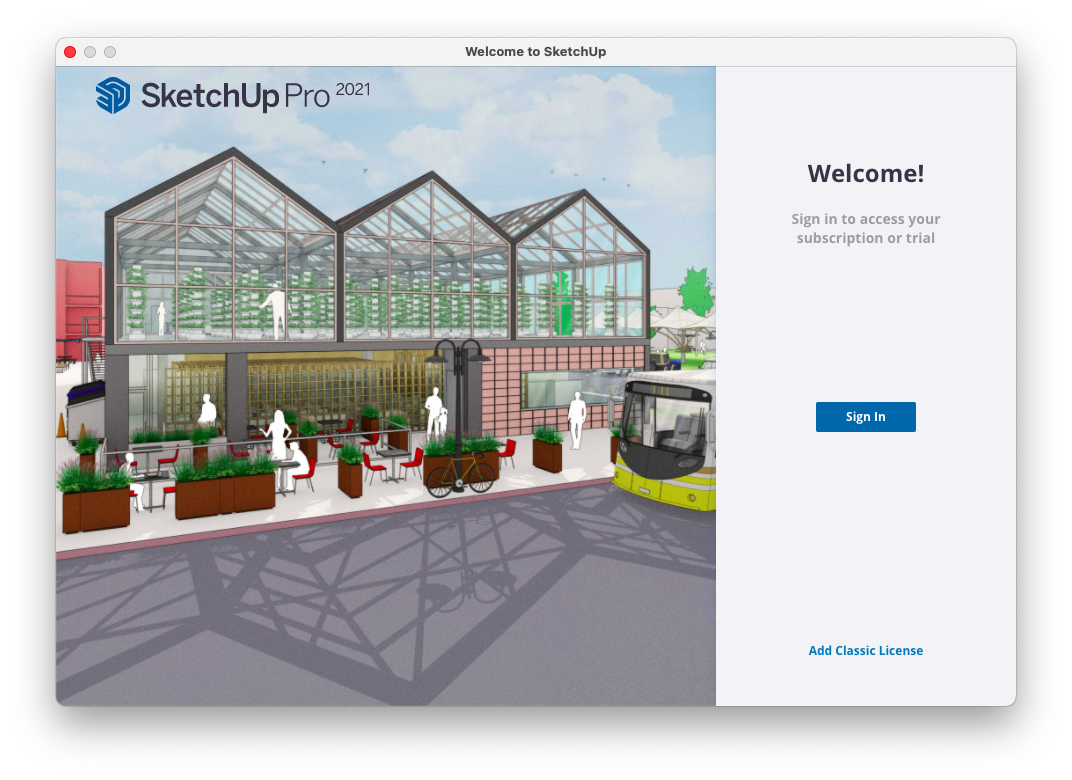
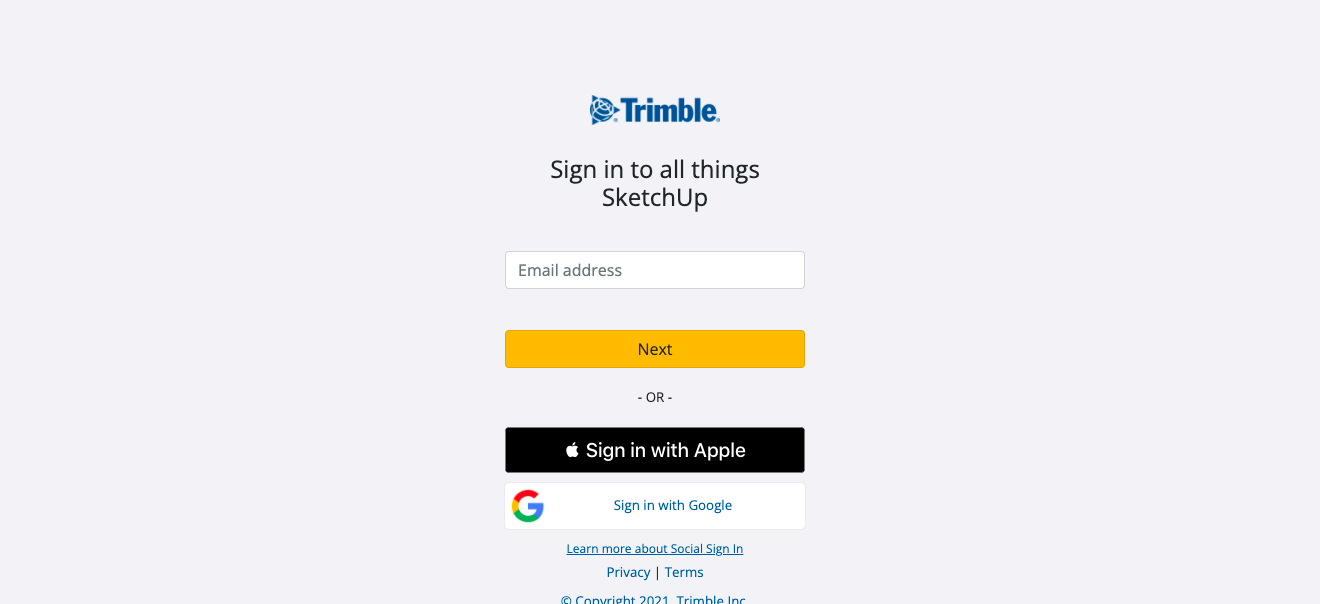
A browser window will open.
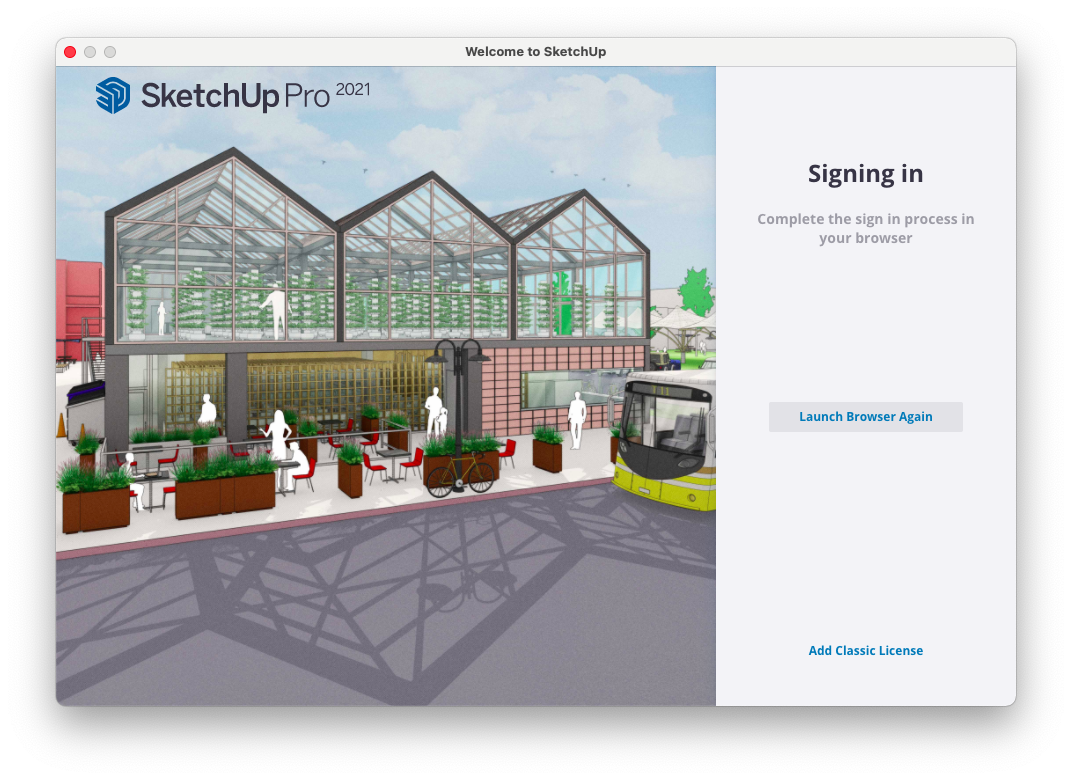
Step 2: Log in with the account you have just created.
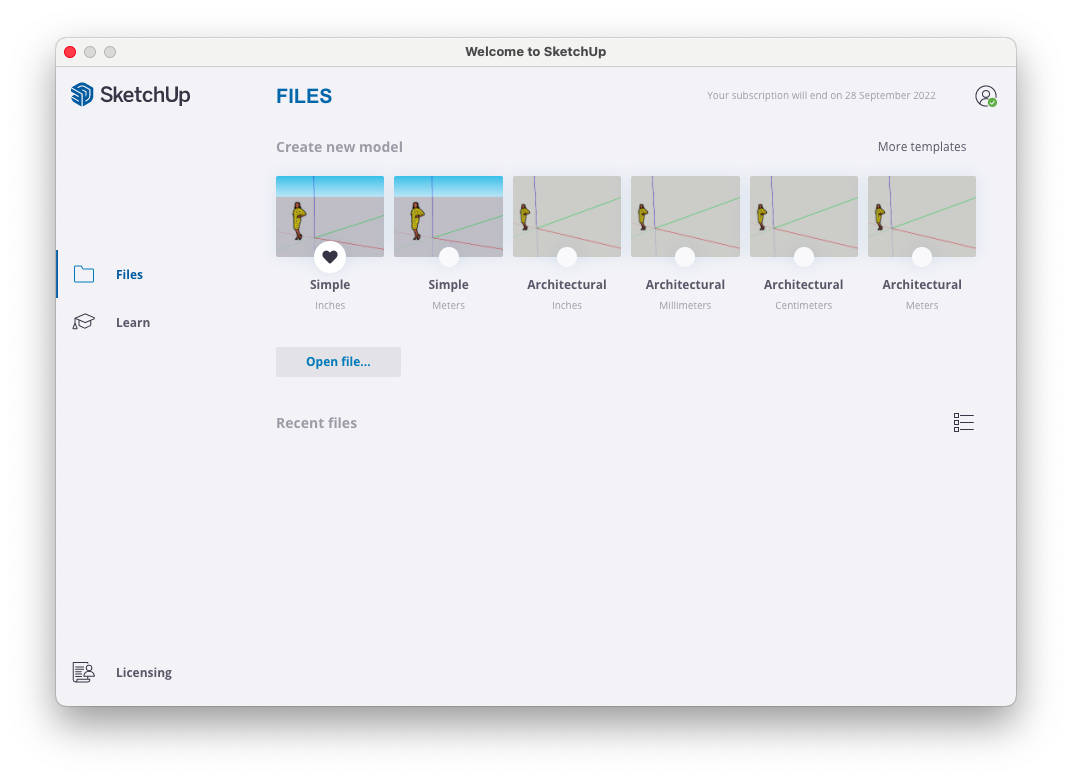
Step 3: Return to SketchUp and click on Licensing at the bottom left.
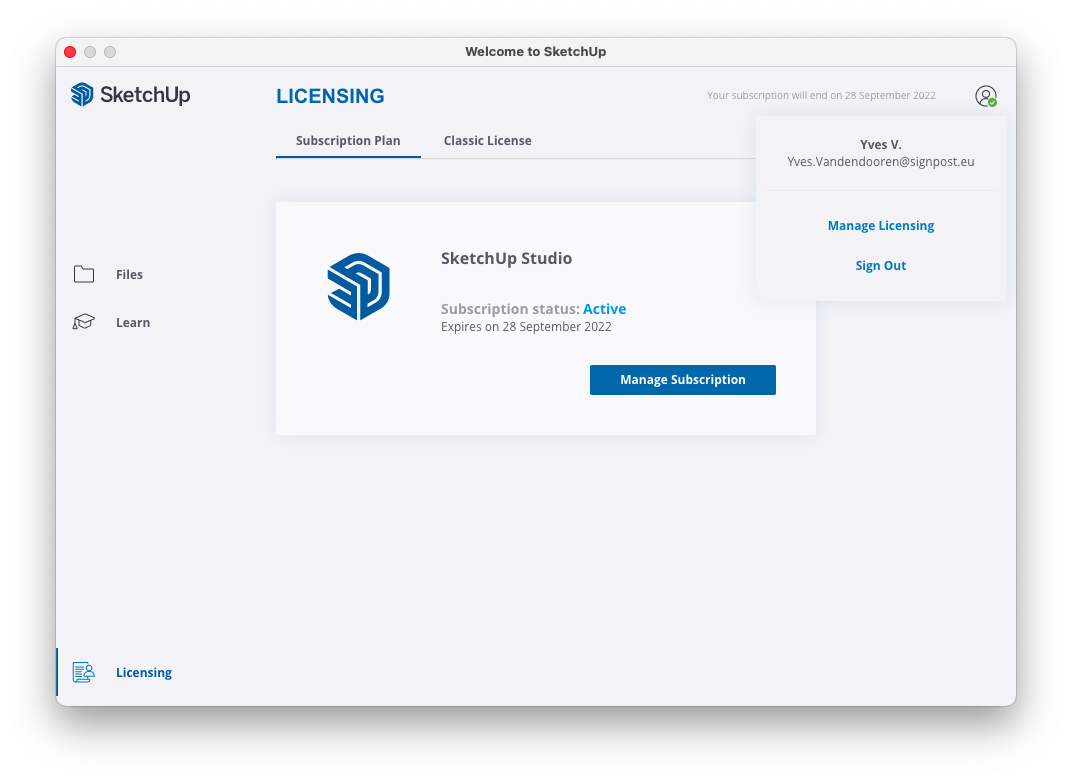
Step 4: Check the subscription status and the expiry date of your licence to see if your licence has been assigned correctly.
SketchUp is now ready to use.
Note: Is your licence not available? Please contact our helpdesk and provide them with a screenshot like the one above.