How to access LinkedIn Learning
Create an account
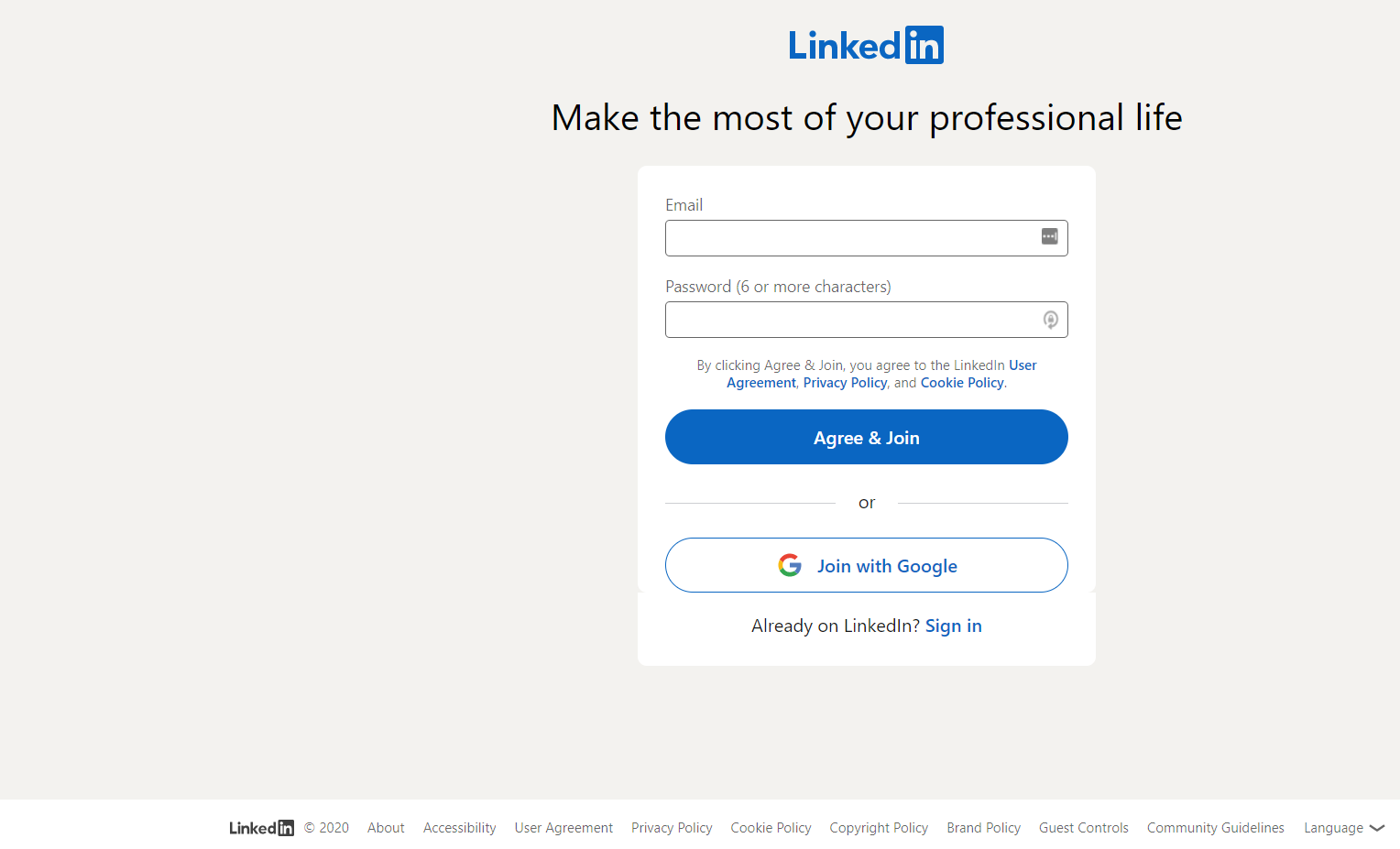
Step 1: Go to LinkedIn Learning on Academic Software and click the 'Start procedure' button.
Step 2: Enter your school email address and a password (not the password of your school account). The licence is linked to your school email address so it is important that you use this to receive a licence.
Click on 'Agree & Join'.
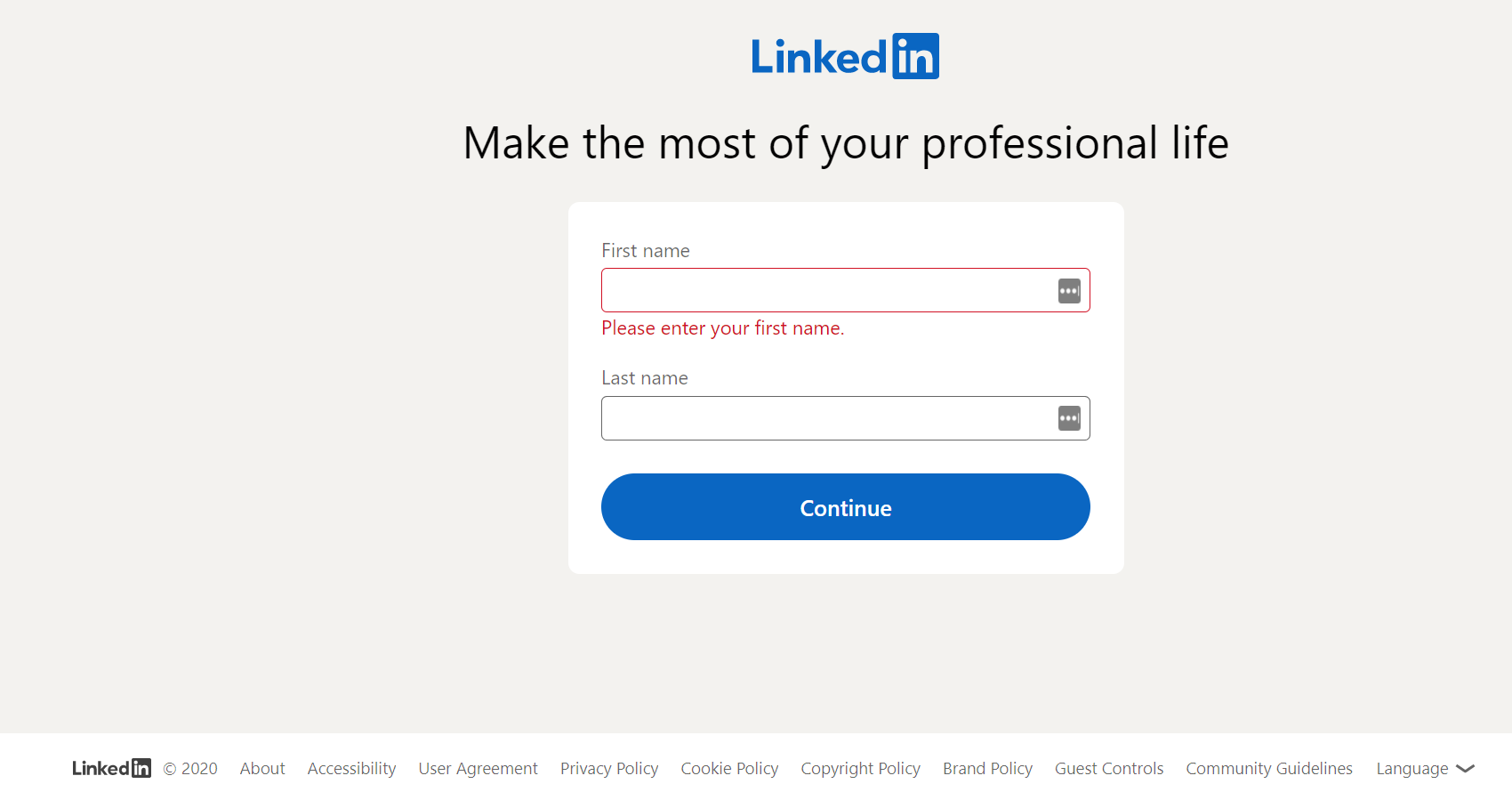
Step 3: In the next window, enter your first and last name. After you click Continue, you must complete the security verification.
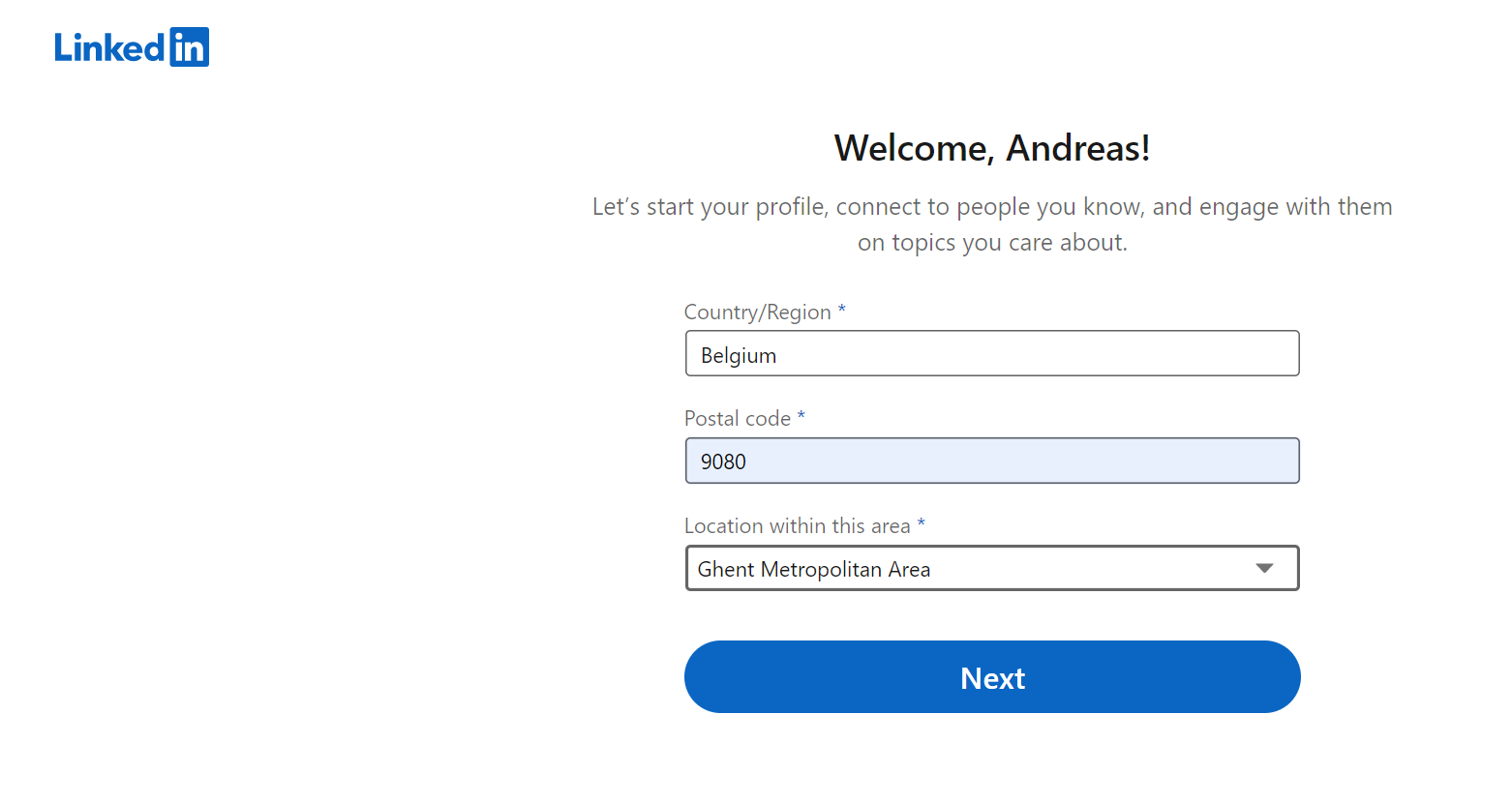
Step 4: Enter your country, postal code and location and click on Next.
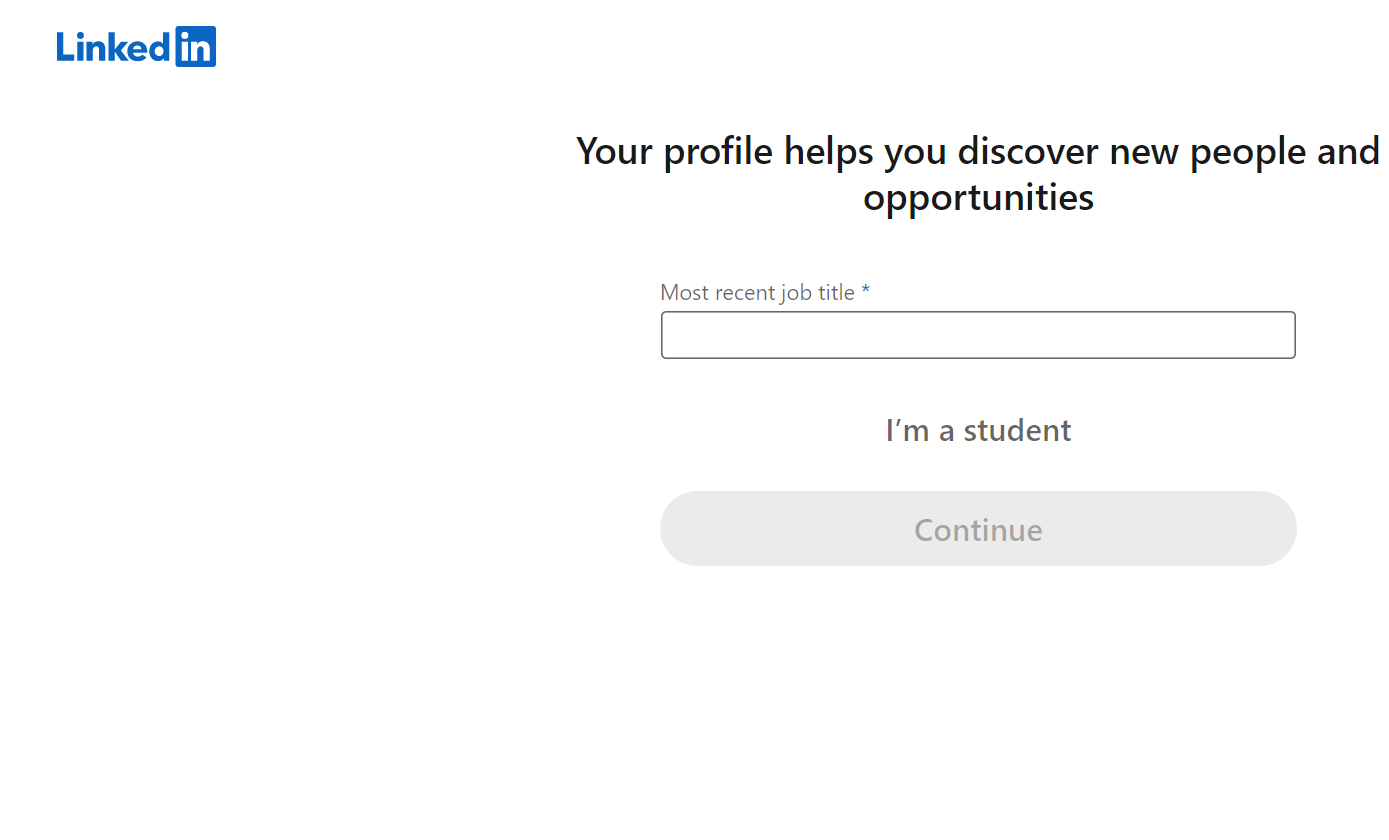
Step 5: Click on 'I'm a student'
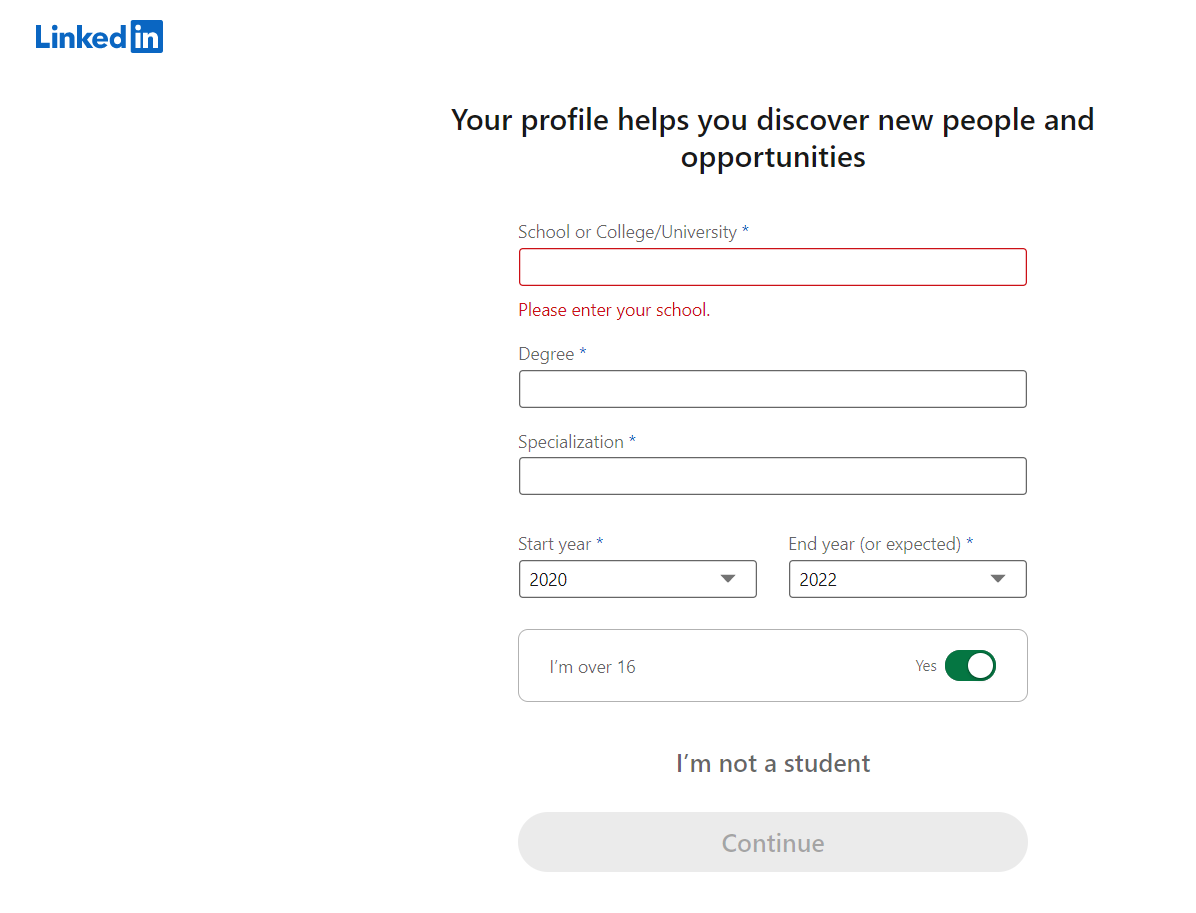
Step 6: Enter your school details and click on Continue.
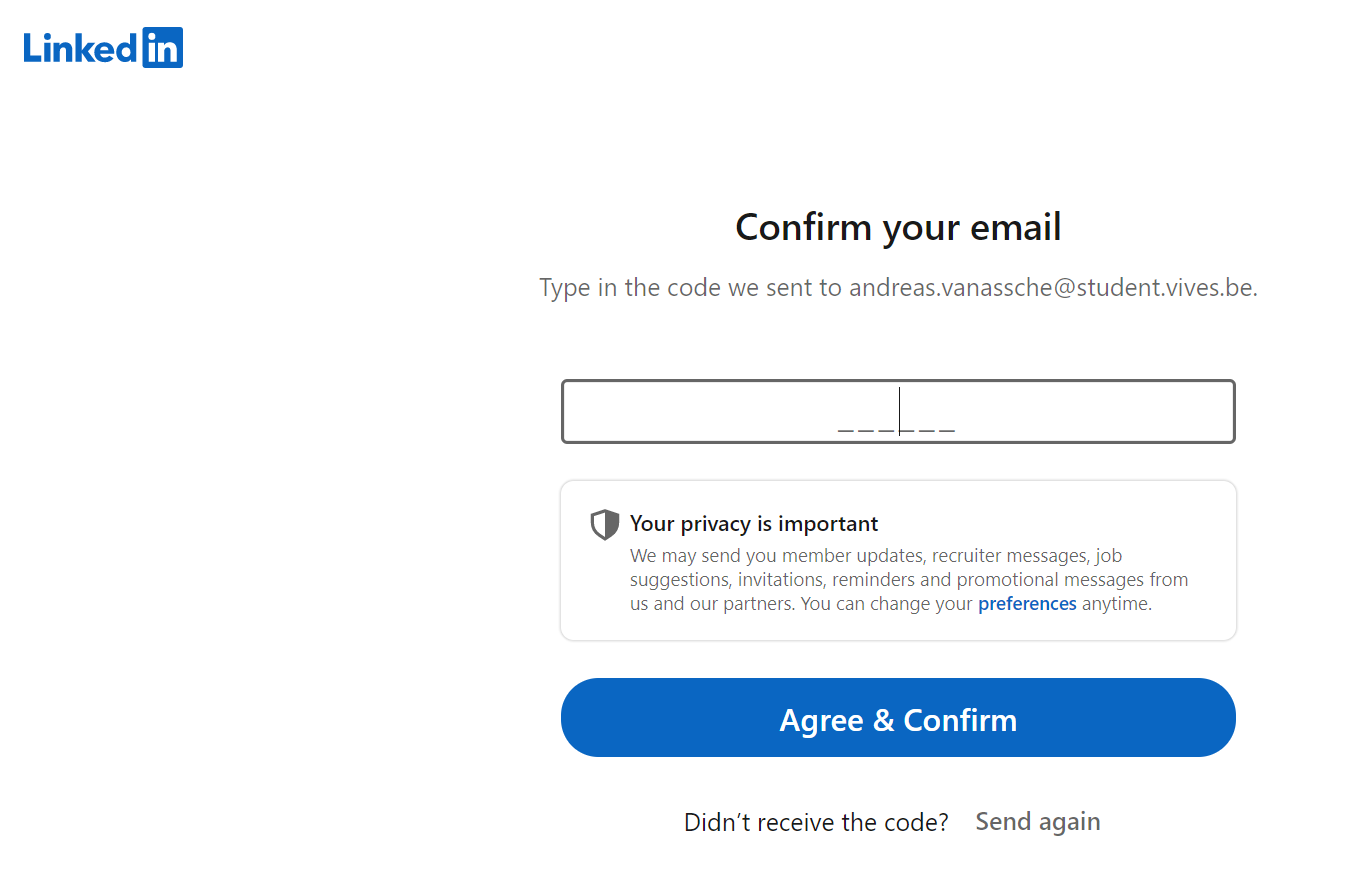
Step 7: You will then receive an email with a code. Enter this code in the window below and click on 'Agree & Confirm' at the bottom.
Step 8: You can now link your licence which is linked to your email address.
First login after account creation
Step 1: When you first sign up, you may be asked to link your LinkedIn Learning account to your school email address. If you already have an account, click on the button 'Go to My Apps' to go to My Apps.
Step 2: Log in with your school details, then look for the LinkedIn Learning logo and click on it.
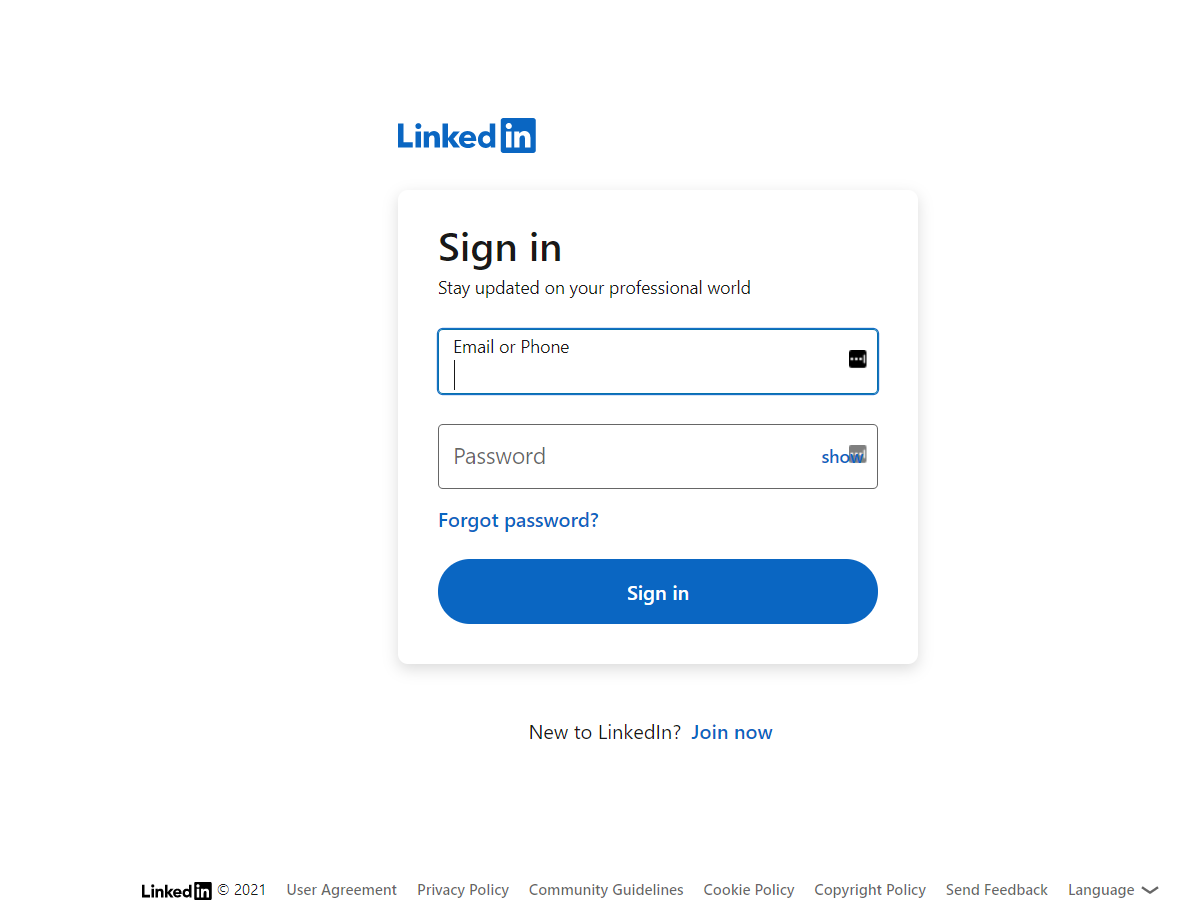
Step 3: Now you will be directed to the LinkedIn Learning page where you will be asked to enter your LinkedIn details. Then click on 'Sign in'.
Step 4: Now click on 'Accept and continue as...'.
Step 5: Now you can get started with your LinkedIn Learning licence.
The second time you sign in, all you have to do is fill in your LinkedIn Learning details and click on Sign in.