How to install eMindMaps
Step 1: Go to the Academic Software page of eMindMaps and click on the button 'Download eMindMaps' on the right.
Step 2: Open the installation file in your downloads folder.
- If you are asked if changes can be made to your computer, click Yes
- Follow the steps below to start the installation
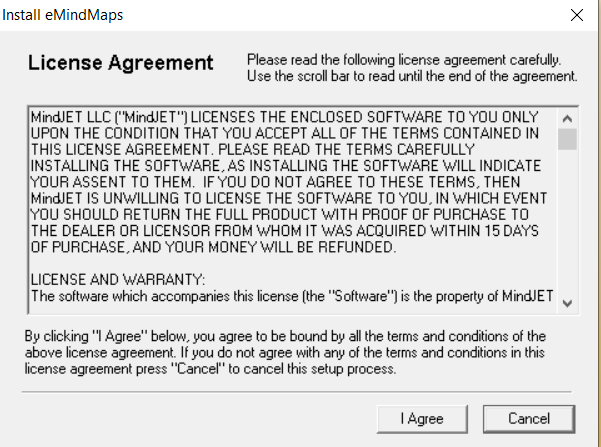
Step 3: In the next step, indicate that you agree with the licence terms by clicking on 'I Agree'.
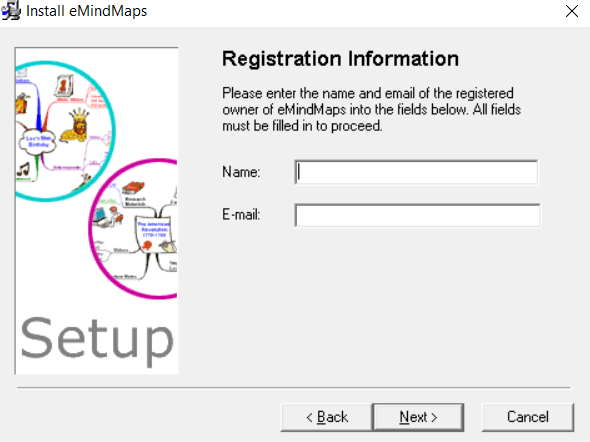
Step 4: Fill in the registration form below with your details and click on Next.
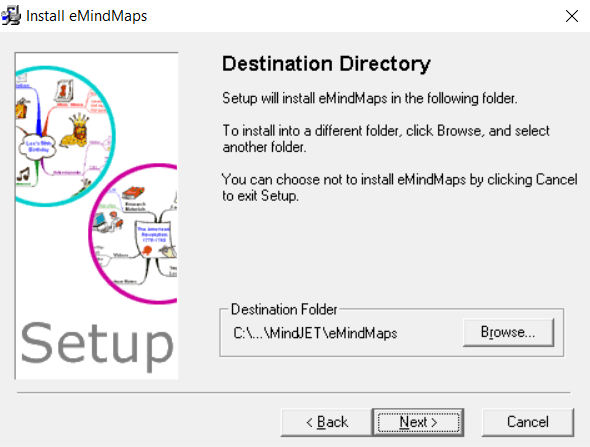
Step 5: Then you will be asked where eMindMaps may be installed. You can change the location by clicking on Browse. If the location is correct, click on Next.
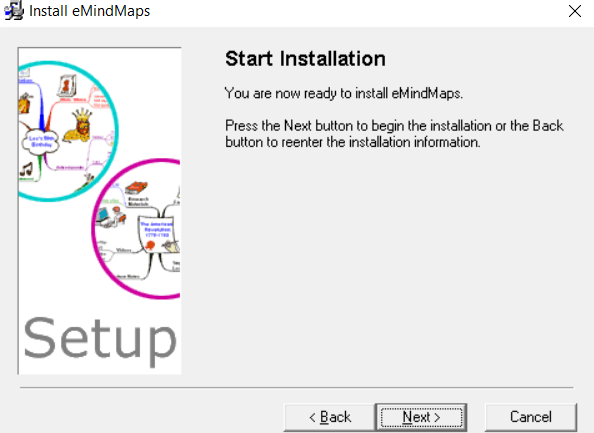
Step 6: Click on Next, eMindMaps is now installed.
Step 7: The installation is complete. Now press OK to complete the installation.
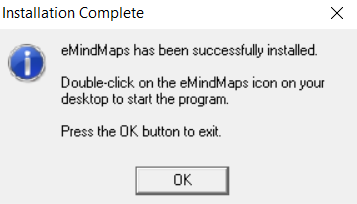
Step 8: eMindMaps is installed and ready to use.
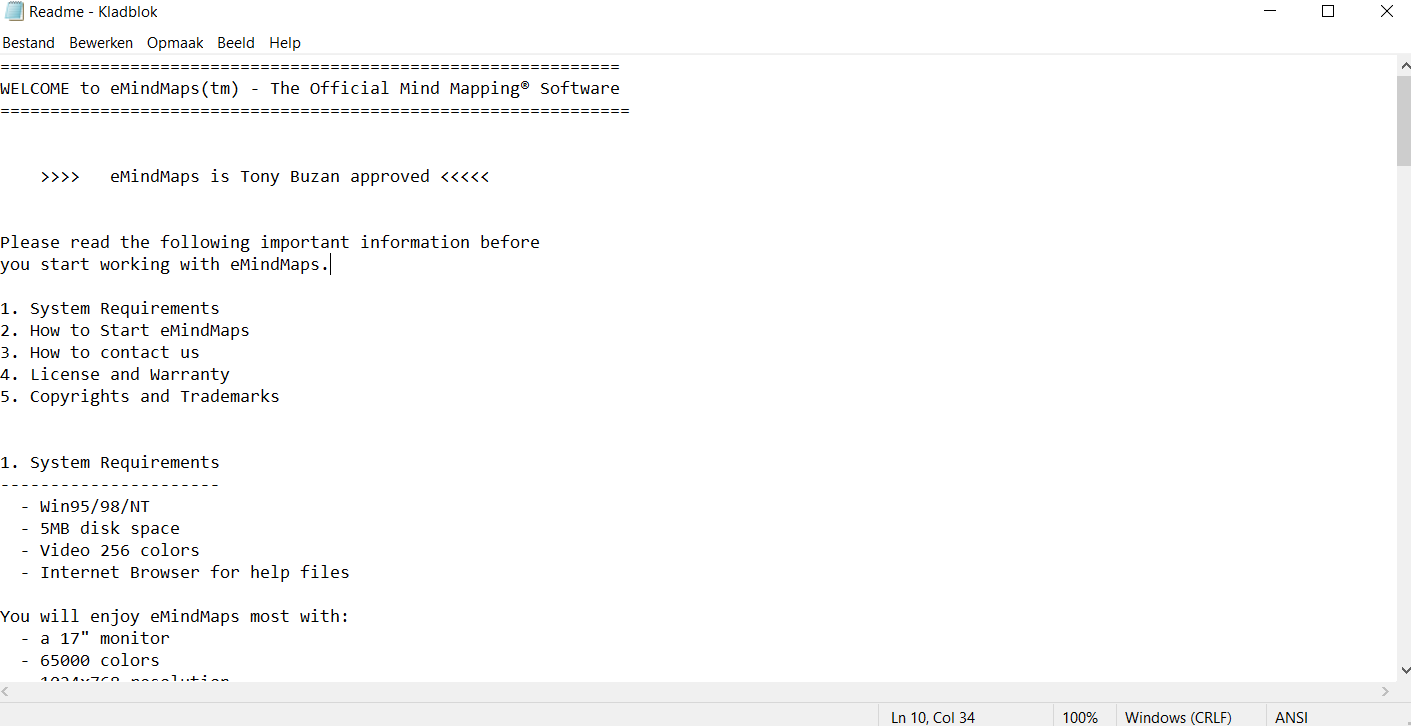
- After installation, a Readme file is displayed, but you can close it
Step 9: You can launch eMindMaps by clicking on the icon on your desktop or by going to eMindMaps from the Start menu.